Accessing The New Taplist.io Theme Gallery
A new display needs to be created in your account in order to switch to the new Taplist.io themes. This is a great opportunity to create a test theme in your account as an unpaired display so you can tweak or modify your TVs theme settings without effecting your live production displays.
To set up a test display with our new themes:
- Log into your Taplist.io Dashboard.
- Select “Displays” from the left side menu.
- Click the “Create a TV” button below the list of your current displays.
- Select orientation of your display and give your TV a name ie- “Test TV.”
- Click “Create TV.”
- Chose to show “A menu or menu sections” and click “Next.”
- Choose which menu and sections you want on your new TV.
- Select one of our new themes and click “Save.” These themes you see are all based off our new "core" theme - think of them as a good starting point - once once is selected you can customize colors/fonts/backgrounds etc.
- When done editing; save your changes and go back to the list of displays on your Dashboard. You’ll see your new test TV at the bottom of your list of displays.
To apply the new theme to your already paired TV(s):
- Click the “Configure display” button on the display you want to copy the new settings to.
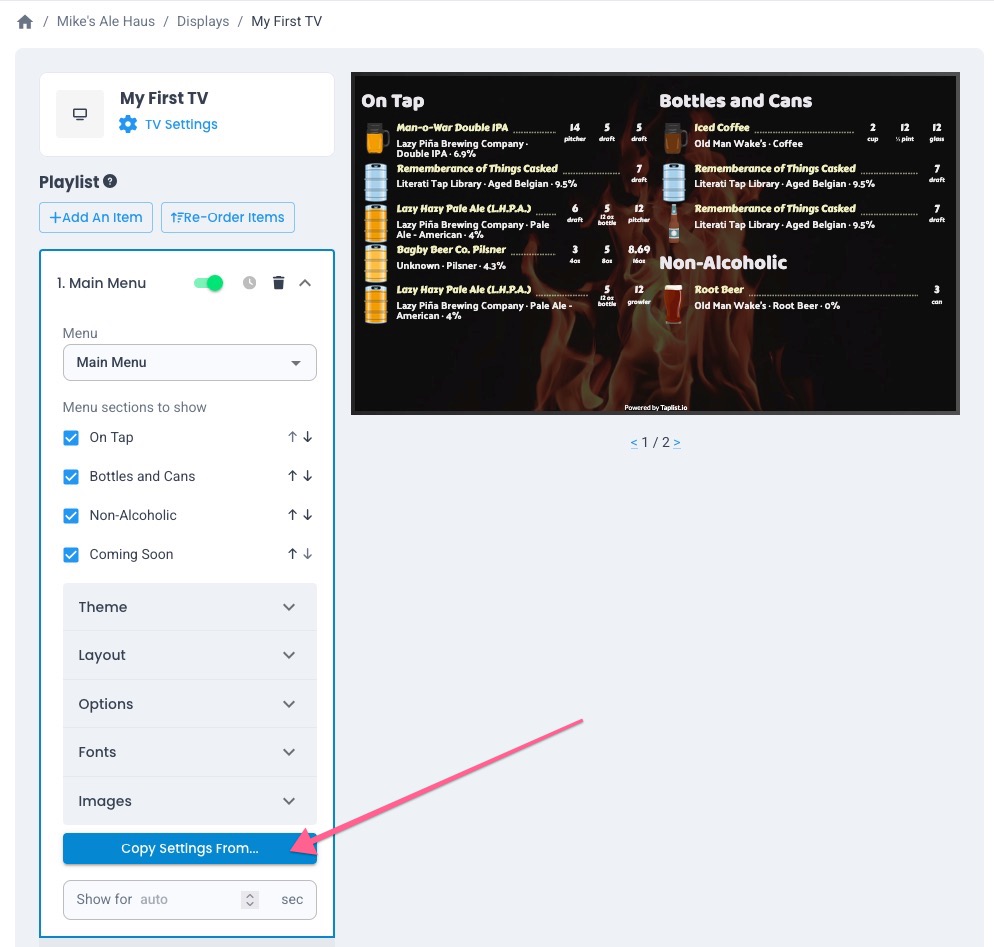
- Click “Copy settings from…” near the bottom of the playlist menu.
- Select your new theme from the drop down list and click “Copy” and your new theme will be applied.