
How To Set Up Your Amazon Signage Stick
There are two methods to set up your Amazon Signage Stick:
- Set up via the Amazon Signage stick remote and a web browser.
- Set up via the Amazon Signage mobile app.
Both methods achieve the same results. If you set up via method 2 you’ll have to manually pair your Signage Stick remote after setup is complete.
Method 1: Set up via the Amazon Signage stick remote and a web browser
- Connect your Signage Stick to power and plug into your TV to boot.
-
Hold down the “Home” button for 10 seconds to pair your Amazon Signage Stick remote
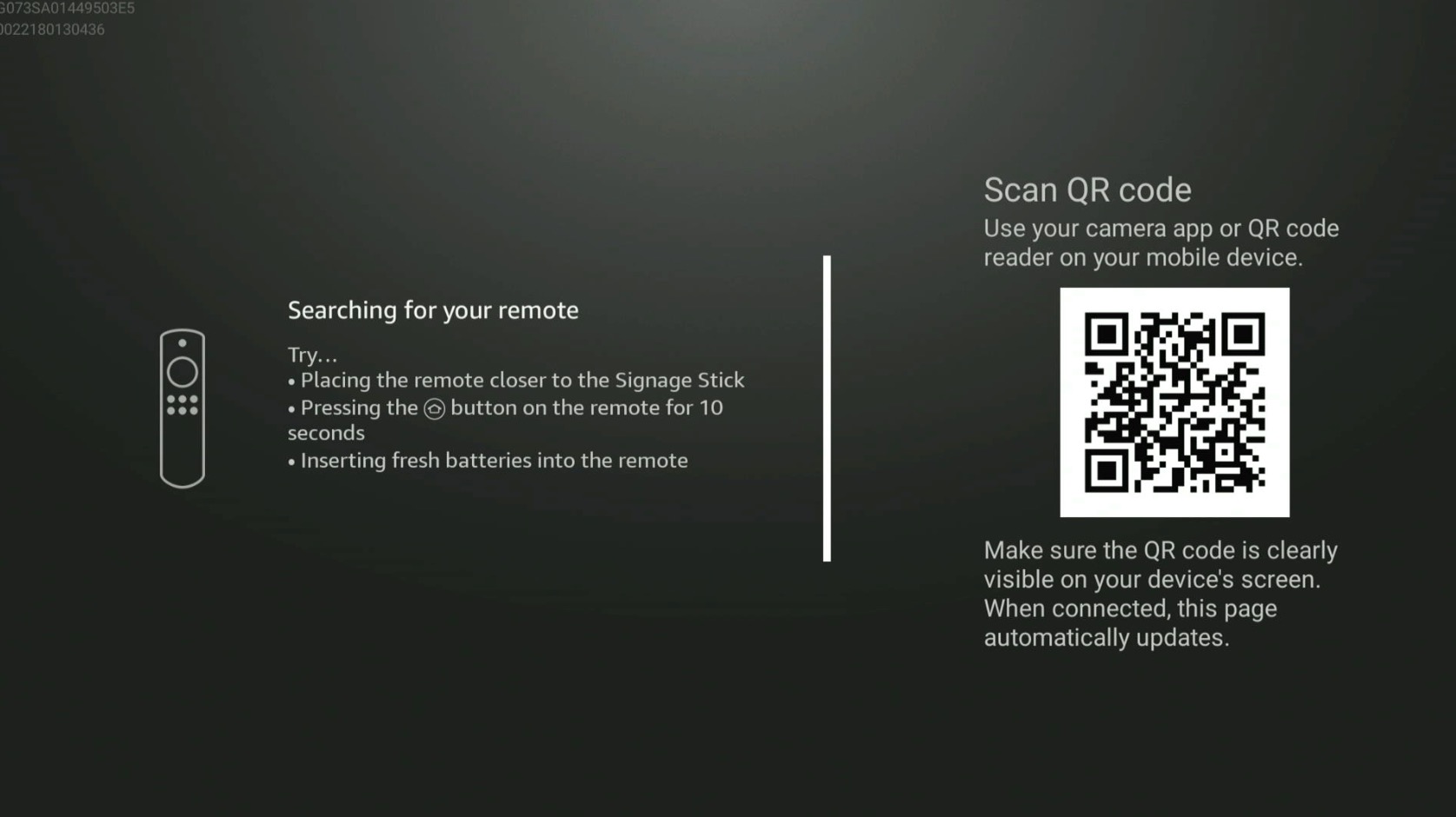
Remote pairing screen. If setting up via remote DO NOT scan QR code. - Select desired Language.
- Connect to WiFi.
- From a web browser log into the Amazon Signage Console with your Amazon account details at: https://console.signage.amazon.com/
-
Click “Add Stick”
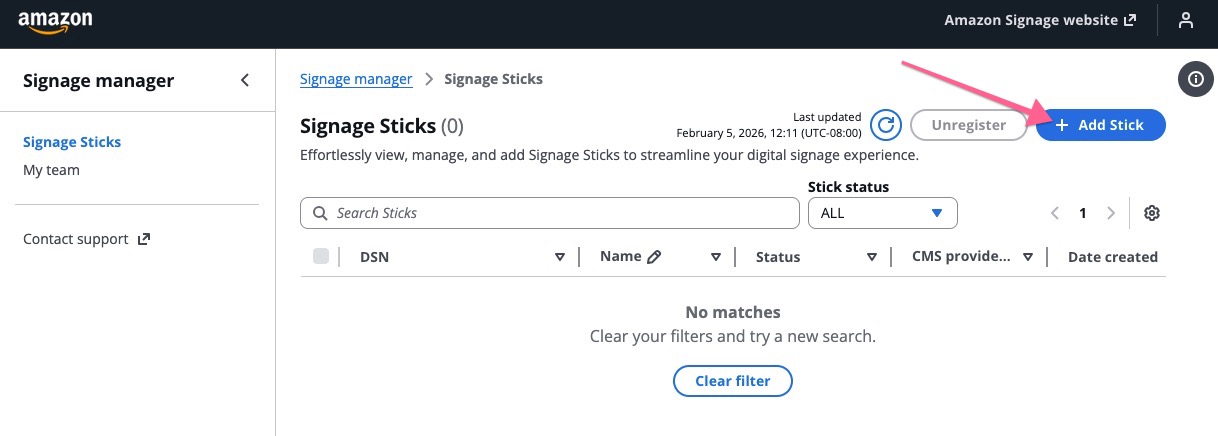
Amazon Signage manager console. -
Enter and verify the 6 character pairing code shown on your Signage Stick and click "next" - this code will be displayed after connecting to WiFi (Step 4).

Amazon Signage pairing screen.
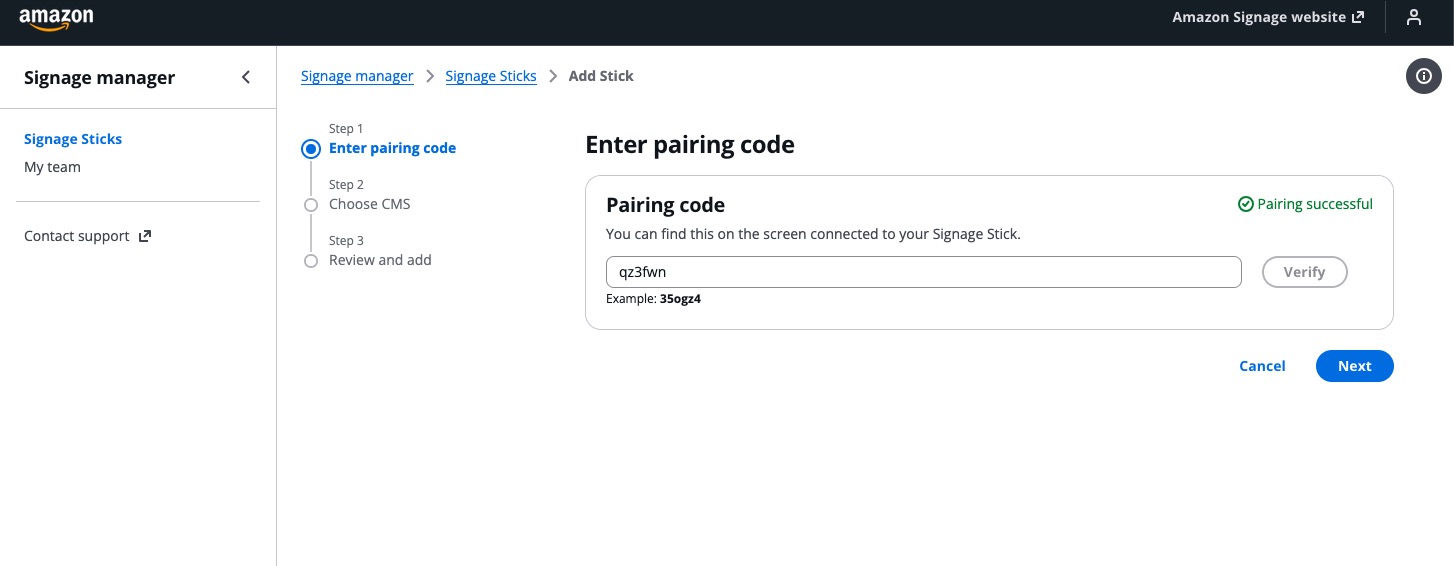
Amazon Signage pairing code entry. -
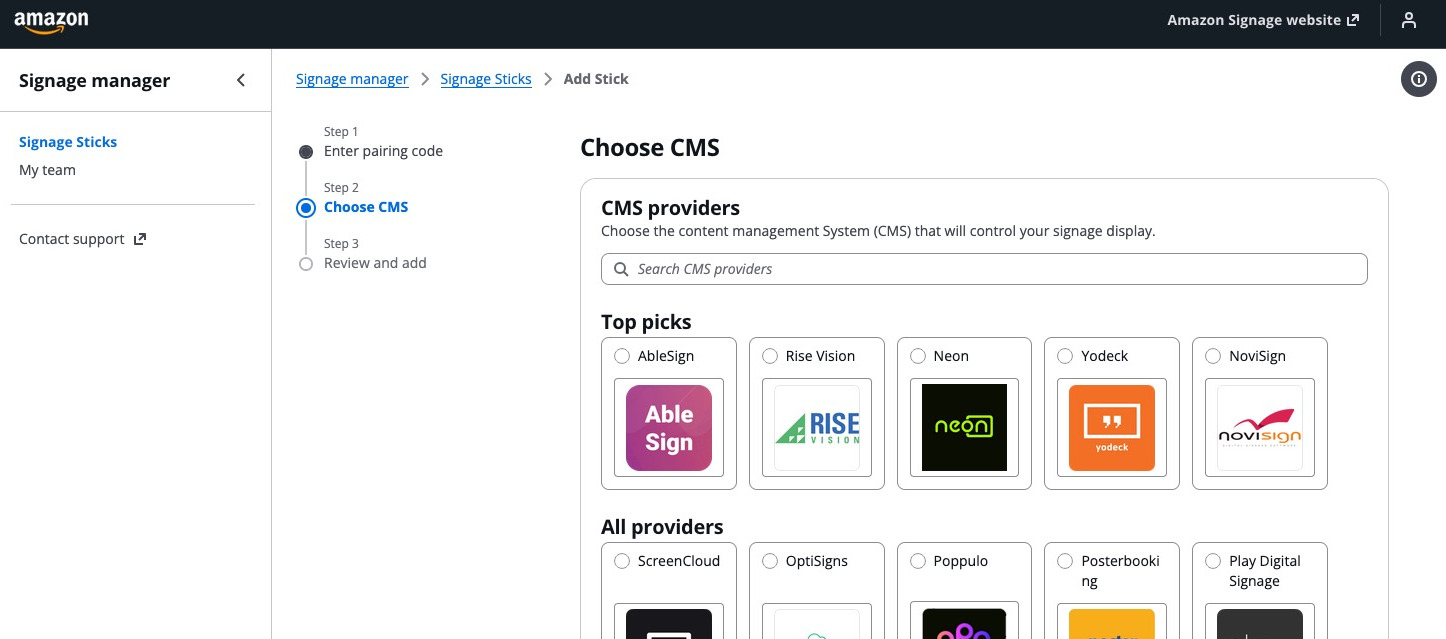
Set Taplist to be your CMS provider. Search for “Taplist”, select and click next.
-
Confirm your details and click “Add Stick” - your device will update and Taplist will install in the background. When completed Taplist will launch and display the Taplist pairing screen.
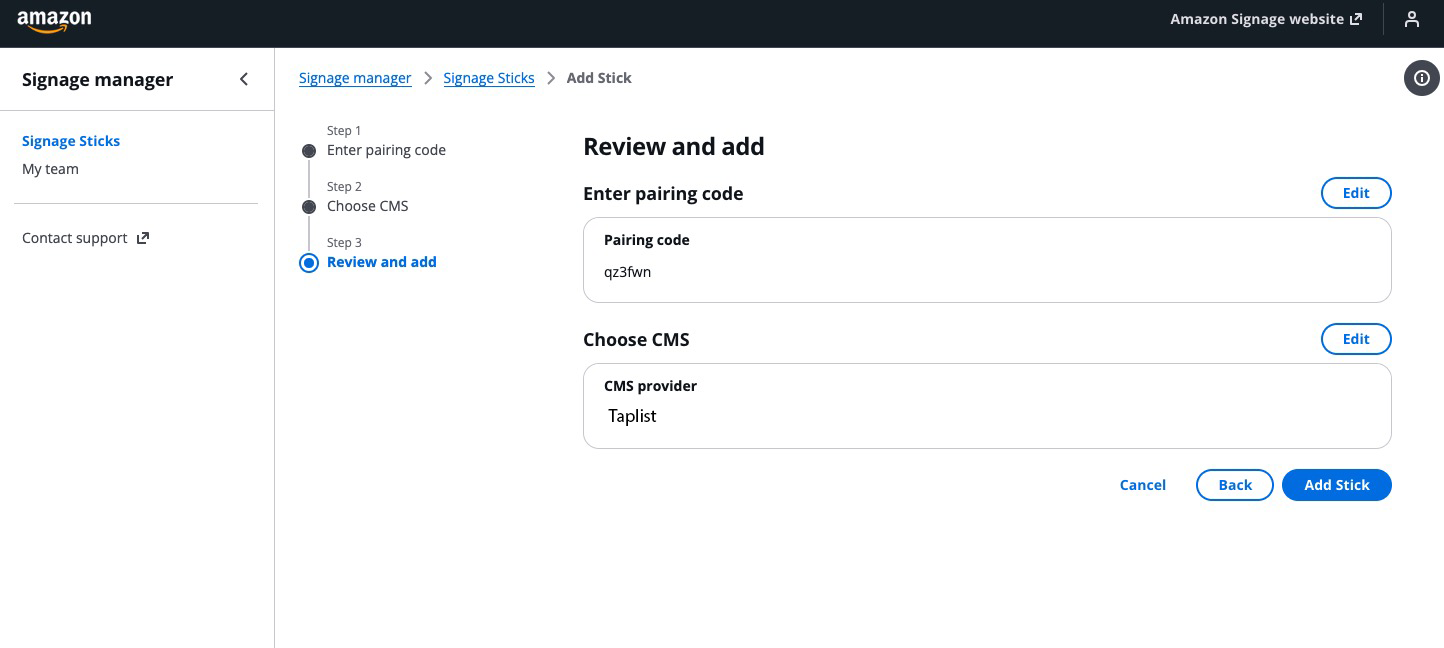
With your details confirmed click "Add Stick" to finish setup. - Using your mobile phone, laptop, or any other device, visit the Taplist.io activation page and enter the 6 character pairing code shown on screen.

Method 2: Set up via the Amazon Signage mobile app.
- Connect your Signage Stick to power and plug into your TV to boot.
-
Take a photo of the QR code on the signage stick setup screen with your phone and open the link.
Scanning the QR code with your phone will provide a link to download the Signage app and start the setup process.
- Install the Amazon Signage App.
- Login with your Amazon account.
-
Click the “+” button in the upper right corner of the app.
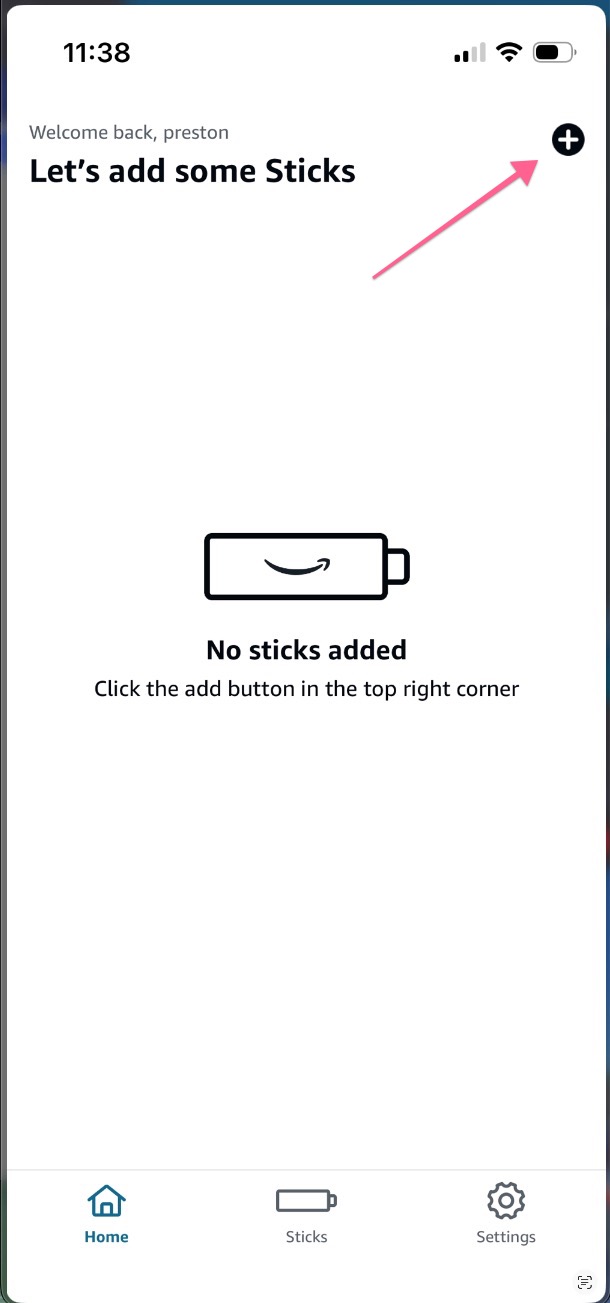
Add your stick!
-
Select “Find Signage Sticks”
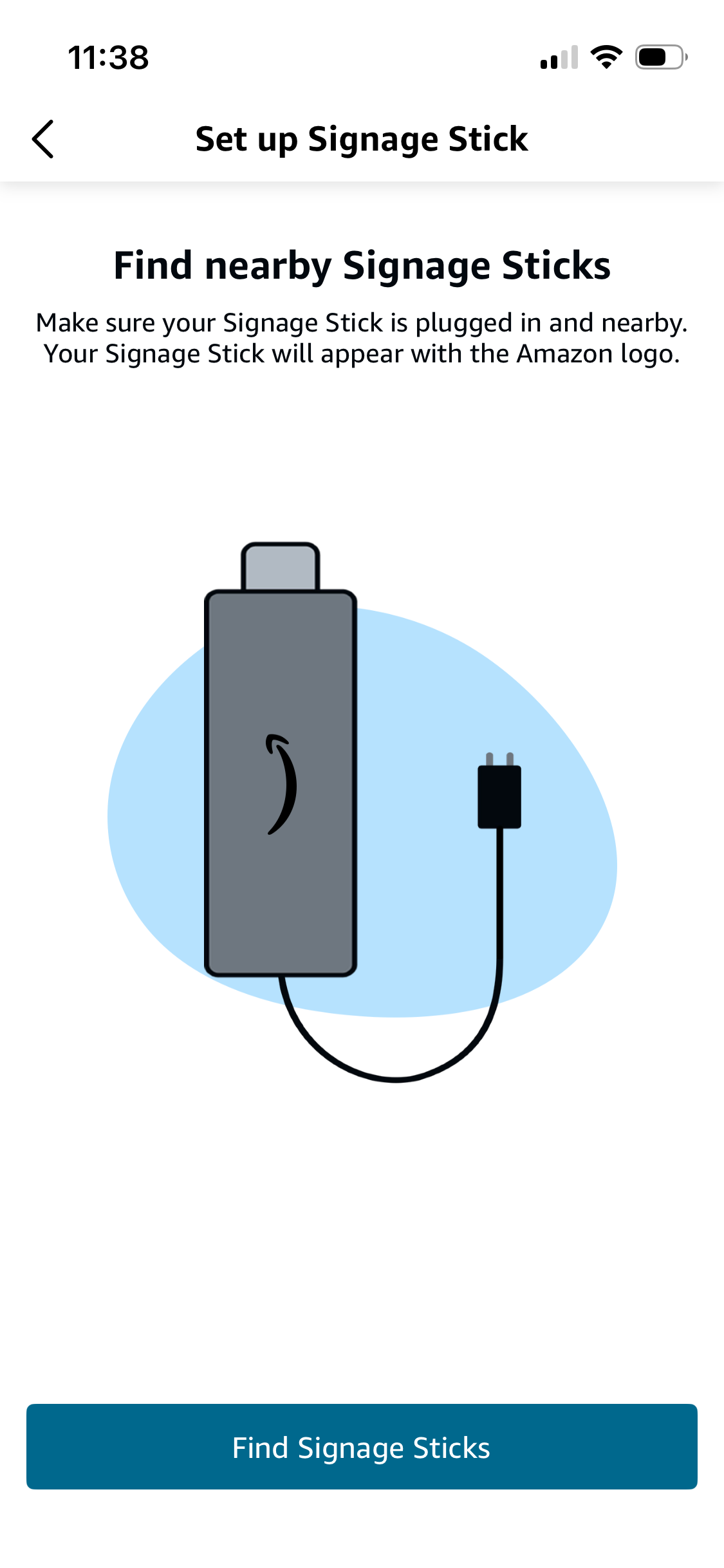
Find Signage stick. - Allow bluetooth to search for nearby sticks.
- Select your stick(s) from the list and click “Next”
- Connect your Signage Stick to WiFi.
-
Search for or select Taplist from the list of CMS providers.
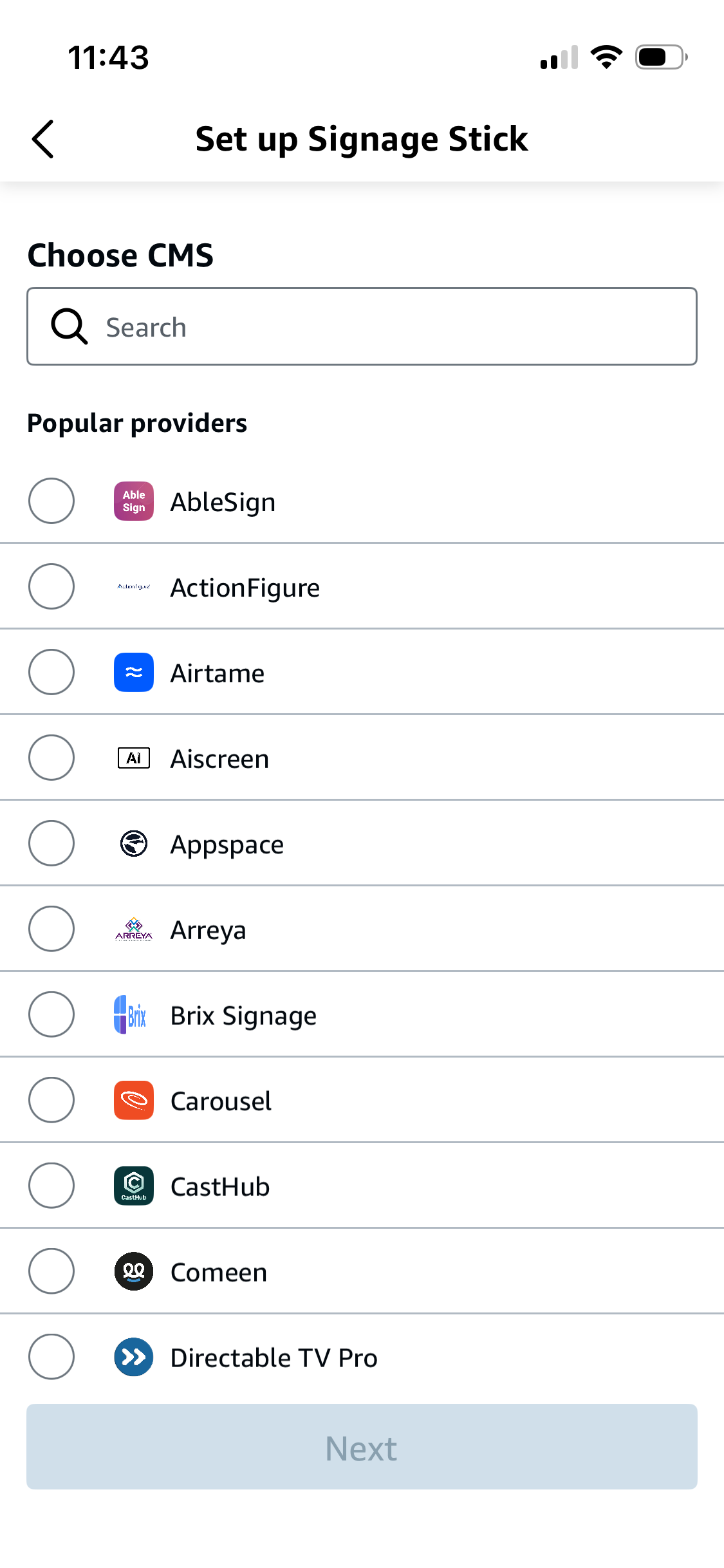
Search for Taplist in the list of CMS providers.
- Confirm your details and click “Add Stick” - your device will update and Taplist will install in the background. When completed Taplist will launch and display the Taplist pairing screen.
- Using your mobile phone, laptop, or any other device, visit the Taplist.io activation page and enter the 6 character pairing code shown on screen.
